Manage event notification subscriptions (Beta)
This topic describes how to view, edit, mute, disable, and delete event notifications in the Replicated Vendor Portal. For more information about the Event Notifications (Beta) feature, see About event notifications (Beta).
View notification subscriptions
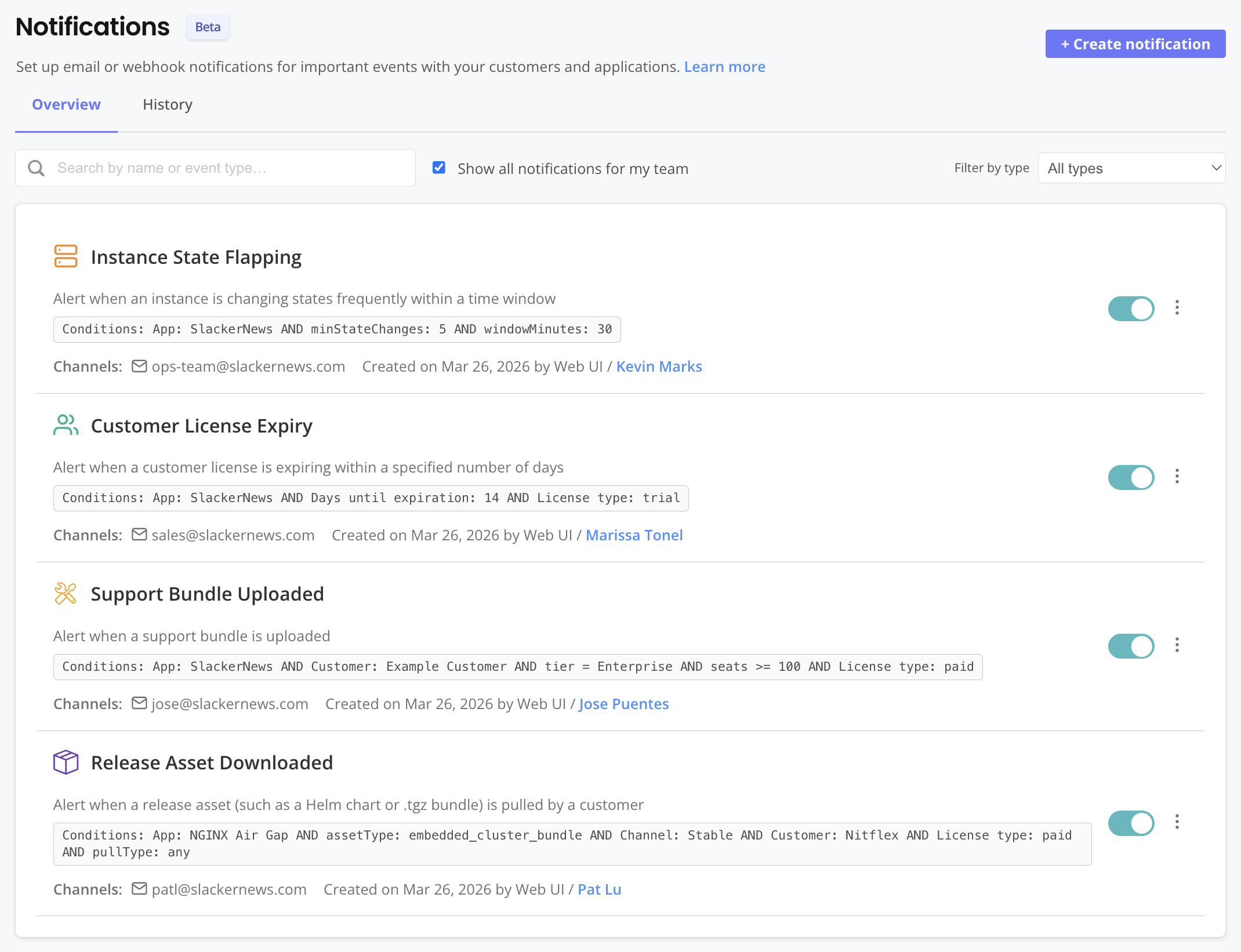
For each notification subscription, you can view the delivery channel (email or webhook), the delivery address, the date created, and who created it. If a custom name is set, it appears as the card title. You can also use the search bar or filters to find subscriptions by name or event type, or view subscriptions created by other team members.
To view notification subscriptions:
-
In the Vendor Portal, go to Notifications > Overview. Use the search bar or filters to find notification subscriptions.
The following shows an example of the notifications Overview page:
View notification history and status
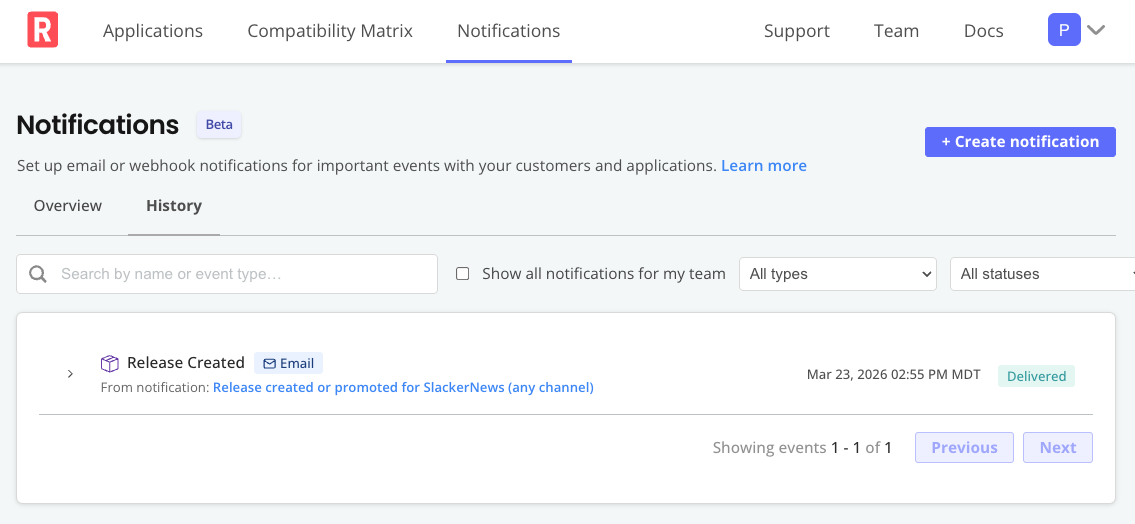
The Notifications > History page shows all triggered notification events for the selected time period. You can filter the history to show only your notifications or filter by a specific notification, including deleted subscriptions. You can also click on an event to view details, such as the timestamp, the associated customer instance, and any error messages when applicable.
To view notification history:
-
In the Vendor Portal, go to Notifications > History. Use the search bar or filters to narrow your results.
Resend a failed notification
You can manually resend events with a Failed delivery status.
To resend a failed notification:
- Go to Notifications > History.
- Expand the failed event and click Resend email or Resend webhook.
- Confirm the resend.
Mute health alerts for a specific instance
You can mute a specific instance on a notification subscription to suppress recurring health alerts for that instance. Muting is useful when an instance is in a known degraded state and you want to reduce noise without disabling the subscription entirely.
Muting applies to the following health event types only:
- Instance State Duration
- Instance State Flapping
- Instance Version Behind
- Custom Metric Threshold Reached
The mute applies to the subscription only — other subscriptions that cover the same instance are not affected.
When you mute one or more instances, an amber banner appears at the top of the History tab listing the active mutes. The subscription card on the Overview page also shows a badge with the count of muted instances.
Mute an instance
To mute health alerts for a specific instance:
- In the Vendor Portal, go to Notifications > History.
- Expand a health event row for the instance you want to mute.
- Click Mute instance.
- Select a mute duration: 7 days, 30 days, or Indefinitely.
- Confirm the mute.
The Vendor Portal will not deliver health alerts for the muted instance on this subscription until the mute expires or you remove it.
Remove a mute
To remove a mute before it expires:
- In the Vendor Portal, go to Notifications > History.
- In the active-mutes banner, click Manage mutes.
- For the instance you want to re-enable, click Unmute.
Edit a notification
You can edit any notifications that you created. Team Admins can also edit notifications created by other team members.
Editing a notification does not affect the notification history for past events.
To edit a notification:
-
In the Vendor Portal, go to Notifications.
-
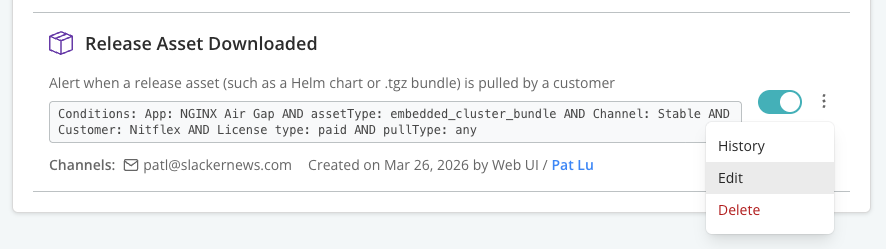
In the dot menu for the notification that you want to modify, click Edit.
-
Edit the notification's settings. For example:
- Add or update a custom subscription name to help identify the subscription
- Add or remove event types, or modify filters on existing event types to broaden or narrow the scope
- Change the delivery method or destination
- Check or uncheck the Enable this notification checkbox to pause or unpause the notification
-
Click Save Changes.
Temporarily disable a notification
When you disable a notification, it stops triggering for new events. The Vendor Portal saves the subscription configuration and any historical event data is still available.
You can re-enable notifications at any time.
To temporarily disable a notification without deleting its history or configuration:
-
In the Vendor Portal, go to Notifications.
-
In the dot menu for the notification that you want to modify, click Edit.
-
Disable the Enable this notification checkbox at the bottom of the form.
-
Click Save Changes.
Delete a notification
You can delete notifications that you created. Team Admins can also delete notifications created by other team members.
Deleting a notification is permanent and cannot be undone. When you delete a notification, historical event data for the notification remains available in the Vendor Portal Notifications > History view.
To permanently delete a notification:
-
Navigate to Notifications in the Vendor Portal.
-
For the notification that you want to delete, click Delete.
-
Confirm the deletion in the prompt.